How to Check for a Manual Action: A Step-by-Step Guide
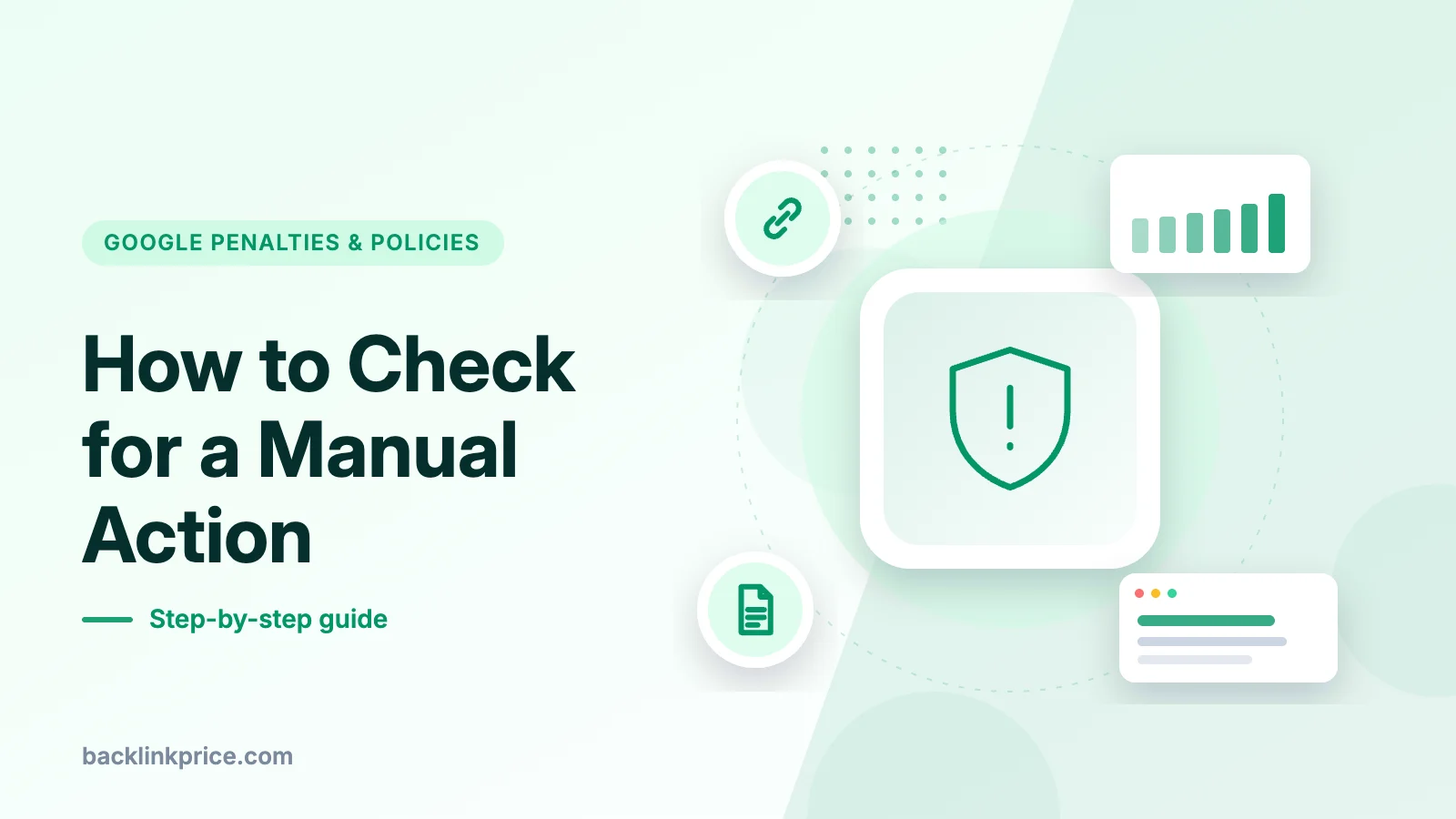
Open the Manual actions report in Google Search Console. A green check mark means no manual action, while a listed action names the type, scope, and affected pages.
Open Google Search Console, go to Security and Manual Actions, then Manual actions, to check for a manual action. If the report shows a green check mark, the site has no manual action. If it lists an action, the report names the type, the affected pages, and the scope, so you can fix it and ask for a review.
Key takeaways
- Google issues a manual action only when a human reviewer finds pages that break its spam policies (Google Search Console Help, 2026).
- A green check mark in the Manual actions report means no manual action, while a count at the top means at least one is active (Google Search Console Help, 2026).
- Most reviews of a reconsideration request take several days or weeks, and link cases can take longer than usual (Google Search Console Help, 2026).
- Fixing only some affected pages earns no partial return to search results, so fix every page before you ask for a review (Google Search Console Help, 2026).
- From 30 August 2026, a site reputation manual action no longer affects results shown to users in the European Economic Area, while it still applies outside it (Google Search Central Blog, 2026).
What a manual action is
A manual action is a penalty a human reviewer at Google applies when pages on a site break Google's spam policies. It is a human decision, not an automatic ranking change, and it stays in place until the problem is fixed and reviewed.
Most manual actions address attempts to manipulate the search index. Google says most of them will result in pages or sites being ranked lower or omitted from search results, with no visual sign to the searcher (Google Search Console Help, 2026).
That silence is why the report matters. Searchers see nothing unusual, so a site owner who never opens Search Console can miss the cause of a drop for weeks. For the link type in particular, see what a Google manual action for unnatural links is.
How to check for a manual action
Open the Manual actions report in Search Console and read the result at the top. The report lists any manual action against a property, and it also shows the site's history.
Step 1: Open Search Console and pick the right property
Sign in to Search Console and select the property for the site you want to check. If the site is not set up, add and verify it first, because the report only works for a verified property.
Step 2: Go to Security and Manual Actions, then Manual actions
Use the left menu to open Security and Manual Actions, then select Manual actions. The path is the same for every property, whether the site is large or small.
Step 3: Read the count or the green check mark
A count at the top means at least one manual action is active. A green check mark with a message that no issues were found means the site has no manual action (Google Search Console Help, 2026).
Step 4: Check the message center and your email
Google says it will notify an affected site in the Manual actions report and in the Search Console message center (Google Search Console Help, 2026). Check both, plus the email tied to the property.
What the report tells you
The report names the type of each action, gives a short description, and shows which pages it affects. Expand an action to see the list of affected page patterns, which can cover part of the site or the whole site (Google Search Console Help, 2026).
Google gives the pattern https://example.com/real-estate/* as an example, where some or all pages under that directory are affected. A note that reads "Affects all pages" means the action covers the entire site, while Google adds that not all pages matching a pattern are necessarily affected.
| Scope | Meaning | Check |
|---|---|---|
| A pattern, such as /real-estate/* | Some or all pages under it | Every page under it |
| Affects all pages | The whole site | Every page |
| No issues detected | No manual action | Other causes |
The report also keeps a history, so past actions stay visible after they are lifted. That history helps when a site changes hands, because a buyer can see what Google flagged before the sale (Google Search Console Help, 2026).
How to tell a manual action from an algorithm update or a security issue
A clean Manual actions report rules out a manual action, so a traffic drop then points to an algorithm change, a security issue, or a fault on the site itself. Do not file a reconsideration request for a drop with a clean report, because there is no action to revoke.
A security issue is a different report in the same menu. It lists signs that a site was hacked or serves malware or phishing, and those pages can carry a warning in search results or in a browser (Google Search Console Help, 2026).
An algorithm change gives no notice in Search Console and no request to file. It moves rankings across many sites at once, while a manual action names one site, one type, and one set of pages.
The March 2024 changes show the split: new spam policies arrived with a core update, and manual actions followed for some sites, as covered in Google's March 2024 spam update and links.
What to do if you find a manual action
Fix every affected page first, then ask Google to review the site. A reconsideration request is the last step, not the first.
- Expand the action, read its type and short description, and follow the Learn more link for that type.
- Fix the issue on all affected pages, and fix every listed action if the report shows more than one.
- Make sure Google can reach them, so they do not require a login, sit behind a paywall, or carry a robots.txt or noindex block (Google Search Console Help, 2026).
- Only when all issues are fixed on all pages, select Request Review in the report.
A good request does three things, in Google's words: it explains the exact quality issue on the site, describes the steps taken to fix it, and documents the outcome (Google Search Console Help, 2026). Keep a log while you work, with page counts and dates.
For a links action, try removal first. Google says blindly adding every backlink to a disavow file is not considered a good-faith effort (Creahive, 2026).
It also asks for records of links removed and why others could not be removed. Build the file only for what is left, as explained in how to create a disavow file.
Tools, time and cost
The check itself uses Search Console, and the report, the message center, and the Request Review button are all in the same place. No separate checker is needed to confirm a manual action, because no outside tool can see the report for a property it does not own.
The check takes a few minutes for one property once you are signed in. The fix takes far longer, and its length depends on the type and scope: a few thin pages take hours, while a site-wide links action can take weeks of outreach and cleanup.
A review takes several days or weeks in most cases, and Google says link-related requests may take longer than usual (Google Search Console Help, 2026). You get an email when the request is received and another when the review is complete, so do not resubmit while one is pending.
For link actions, the rules behind the risk are Google's link spam rules, which treat links created mainly to manipulate rankings as spam. Read them before you judge a link, as set out in Google's link spam policies.
How to measure recovery after a manual action is lifted
Watch the Manual actions report for the decision, because Google tells you by email and in Search Console when the review is complete (Google Search Console Help, 2026). A revoked action shows up as a clear report, not as a quiet change in one ranking.
Then track the affected pages in the Performance report, by clicks and impressions for those pages and their queries. That report shows whether the pages that were demoted or omitted are being shown again, which is the result that matters.
Keep the log you made during the fix, and keep checking the report on a regular schedule. If a request is rejected, the reply points at what is still wrong, so fix that gap and file a new request with fresh evidence, as shown in the Search Console Performance report guide.
What changed in 2026 for site reputation abuse
From 30 August 2026, a manual action under Google's site reputation policy has a different effect inside the European Economic Area than outside it. Outside the area, the action directly affects search results for the affected portion of the site, and the rest of the site is not affected (Google Search Central Blog, 2026).
Inside the area, the impact of the action does not apply. The affected section may be separated so that, over time, it ranks on its own merits (Google Search Central Blog, 2026).
Google introduced the policy in 2024 to stop third-party content on a trusted site exploiting its reputation to rank higher in search (Google Search Central Blog, 2026). The 2026 change followed discussion with the European Commission, and it covers enforcement, not the policy itself. For the full policy, see Google's site reputation abuse policy explained.
On 4 November 2026, Google emailed sites with past site reputation actions to say the previous action would no longer impact results shown to users in the European Economic Area (Search Engine Roundtable, 2026). The change itself had taken effect on 30 August 2026.
Google says it will lift all previous actions for EEA users, and a past action is not used as a ranking signal (Search Engine Journal, 2026).
The four factors Google weighs for site reputation abuse
Google now weighs four factors in a review for this policy, as reported by Search Engine Journal in 2026. The factors are the design and user experience of the section, the quality of its content, its stated or implied authorship, and whether the same content appears on other sites.
- Design and user experience: are the graphic design, formatting, typography, and user experience features consistent with the host domain (Search Engine Journal, 2026)?
- Content quality: are there quality issues on the page that do not appear on the main domain (Search Engine Journal, 2026)?
- Authorship: is there a clear statement of who owns or is responsible for the content (Search Engine Journal, 2026)?
- Duplication: does the same or near-identical content appear on multiple other sites (Search Engine Journal, 2026)?
Google says human reviews for this policy are rare, and its overarching goal is to judge whether the host site had enough input and editorial oversight over the section (Search Engine Journal, 2026). It also applies a presumption that new pages match the overall quality of the other pages on the domain.
Common mistakes
- Checking traffic first and calling every drop a penalty, when a clean Manual actions report rules out a manual action.
- Filing a reconsideration request before the fix is complete, which wastes a review cycle and adds weeks to the timeline.
- Fixing only the worst pages, when Google says a partial fix earns no partial return to search results.
- Disavowing every backlink a tool flags, when Google says blindly adding every backlink to a disavow file is not a good-faith effort.
- Hiding the affected pages or moving the violating content to a new subdomain, which Google lists as policy circumvention and can bring broader action.
- Ignoring the Security issues report, when a hacked site can lose rankings in a way that looks like a penalty.
Frequently Asked Questions
How long does it take to check for a manual action?
The check itself takes a few minutes for one property. Sign in to Search Console, open Security and Manual Actions, then Manual actions, and read the count or the green check mark at the top. The fix and the review take far longer, so treat the check as the start of the work, not the whole job.
Can a manual action expire on its own?
No. A manual action stays until you fix the problem and Google revokes it after a review. Do not wait for it to lift on its own. Fix every listed issue on every affected page, then select Request Review and explain what you changed and what the result was.
Does a manual action affect the whole site or only some pages?
It depends on the scope shown in the report. Some actions cover a single pattern of pages, such as one directory, while others state that they affect all pages. Expand the action to see the pattern, then fix every page under it, not just the pages that lost the most traffic.
Should I file a reconsideration request if the report is clean?
No. A reconsideration request asks Google to lift a manual action, so a clean report means there is nothing to lift. Look instead at algorithm changes, security issues, and faults on the site, such as a noindex tag or a robots.txt block, and fix what the evidence points to.
What if I just bought a site with a manual action?
Fix the issues listed in the report first, then say in your reconsideration request that you recently acquired the site and that it now no longer violates the policies. Check the manual action history before a handover in future, so a past action is known before the sale closes.
Sources
If the action is for unnatural links, start with our guide to Google manual actions for unnatural links.
The BacklinkPrice Team researches backlink prices, publisher sites and link building tools. We check prices and plans against each provider's own pages and date them, so you know how current the numbers are.
More from BacklinkPrice TeamRelated guides