How to Add Nofollow Links in Shopify (Blog Posts, Pages, and Themes)
Use the rich text editor's Show HTML button to add rel nofollow or sponsored to Shopify links, then handle theme links and check your work.
To add a nofollow link in Shopify, open the blog post, page, or product description, click the Show HTML button in the rich text editor, and add rel="nofollow" (or rel="sponsored" for paid and affiliate links) inside the link's anchor tag, then save.
Shopify's link dialog has no nofollow checkbox, so editing the HTML is the standard method. Links in your theme need a code edit instead.
Key takeaways
- Shopify's rich text editor lets you switch to HTML with the Show HTML button in blog posts, pages, product descriptions, and collection descriptions.
- Add rel="nofollow", rel="sponsored", or rel="ugc" to the anchor tag to qualify a link.
- Google asks site owners to mark paid and affiliate links as sponsored; nofollow is also accepted.
- Header, footer, and section links live in theme code or theme settings, not the rich text editor.
- Always check the published page's source to confirm the attribute is there.
When to use nofollow in Shopify
Qualify links you don't want to vouch for or that involve payment.
Google's guide to qualifying outbound links lists three values:
| Attribute | Use it for | Shopify example |
|---|---|---|
| rel="sponsored" | Paid placements, ads, affiliate links | Affiliate product links in a blog post |
| rel="ugc" | User-generated content | Links in customer comments or reviews |
| rel="nofollow" | Links you don't want to endorse | A link to a site you mention but don't trust |
Google says nofollow is also acceptable for paid links. Read sponsored vs nofollow vs UGC for the differences.
Step-by-step: add nofollow to a link in a Shopify blog post
The same method works for pages and product descriptions.
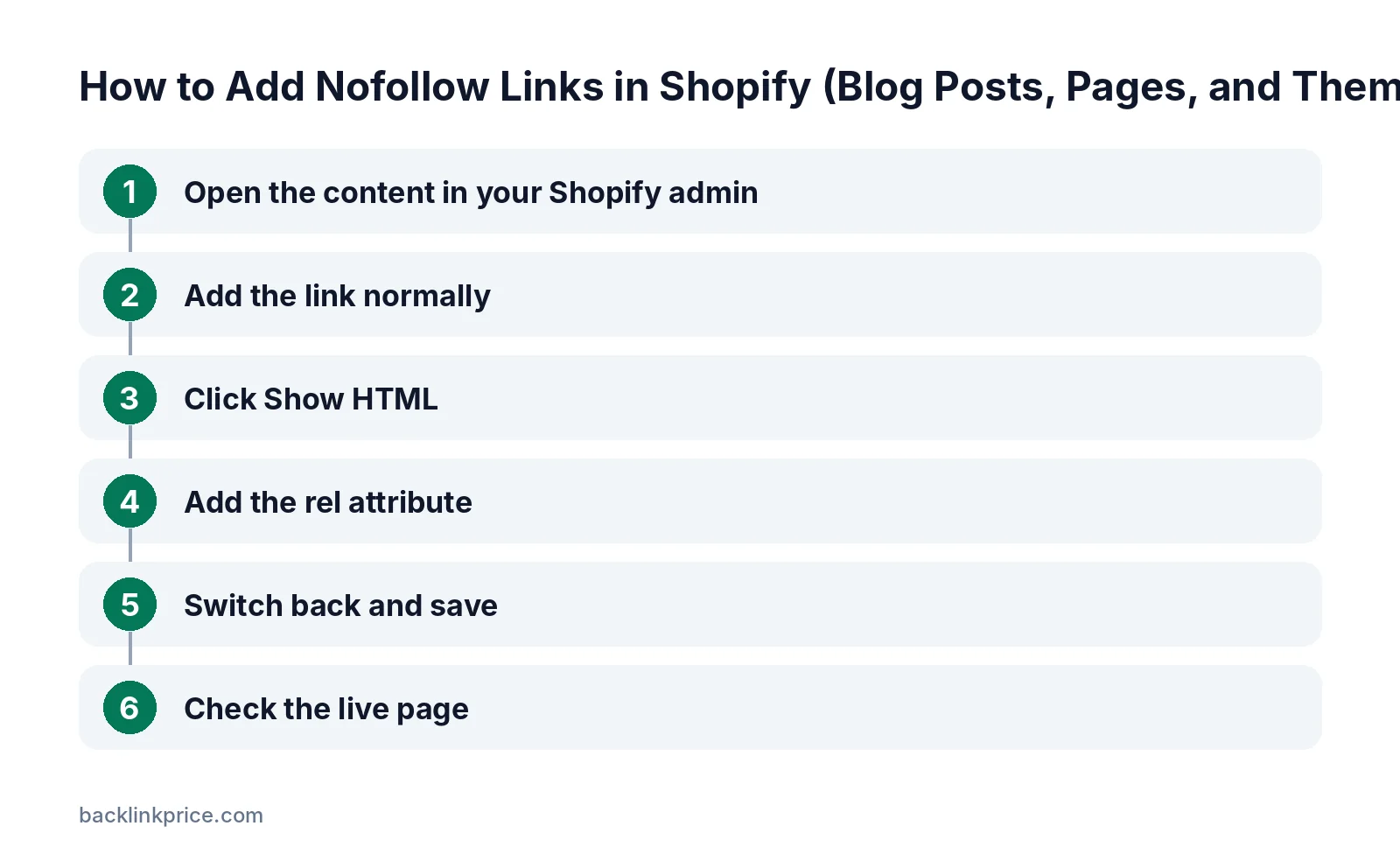
Step 1: Open the content in your Shopify admin
Go to Online Store, then Blog posts, and open the post. For pages, go to Online Store, then Pages. For products, open the product.
Step 2: Add the link normally
Highlight the anchor text and use the link button to add the URL. This creates the anchor tag you will edit in the next step.
Step 3: Click Show HTML
Shopify's rich text editor guide says you can click the Show HTML button to view the HTML of the content. Find your link, which looks like an a tag with an href value.
Step 4: Add the rel attribute
Inside the opening a tag, after the href value, add rel="nofollow". For an affiliate link, use rel="sponsored" instead. Keep the quotation marks straight, not curly.
Step 5: Switch back and save
Click Show HTML again to return to the visual editor, then save the post, page, or product. Avoid re-editing the link in the visual dialog afterwards, as that can rewrite the tag.
Step 6: Check the live page
Open the published post, right-click the link, and inspect it. Confirm the rel attribute appears on the live link.
How to add nofollow to theme links
Links in headers, footers, and sections are part of the theme.
Menus and many section links are set in theme settings, which usually offer no rel option. To add nofollow, a developer can edit the relevant Liquid template in the theme code.
Shopify's theme architecture documentation explains how templates, sections, and snippets fit together. Duplicate your theme before editing code so you can roll back.
In a Shopify Community thread, a merchant asked how to nofollow external logo links in an "as seen on" section because no built-in option existed. That is a typical case for a theme edit.
Nofollow for affiliate links on Shopify
Affiliate links need both a link attribute and disclosure.
Mark affiliate links with rel="sponsored" or rel="nofollow". See should affiliate links be nofollow or sponsored.
In the US, the FTC's endorsement guides FAQ explains that material connections such as affiliate commissions should be clearly disclosed. This is not legal advice.
Links in reviews, comments, and user content
Mark links that customers add with rel="ugc".
Blog comments and some review apps let customers add links. Google suggests rel="ugc" for user-generated content, and nofollow is also acceptable.
Check your comment settings and review app options. Many apps control their own link markup, so inspect a sample review link and contact the app developer if attributes are missing.
Moderating comments before they go live also stops spam links from appearing on your store.
Does nofollow hurt your Shopify SEO?
No, qualifying the right links is normal and expected.
Adding nofollow or sponsored to paid, affiliate, and untrusted links simply tells Google you are not vouching for them. It does not harm your own rankings.
Google treats these attributes as hints. Use them honestly, and keep normal editorial links to helpful sources followed. For context, read do nofollow links help SEO.
Should you nofollow internal links in Shopify?
Usually not.
Internal links help search engines find and understand your products and collections. Nofollowing them can stop value flowing to pages you want to rank.
If a page should not be indexed, such as a thank-you page, use noindex rather than nofollowing links to it. Learn more in internal links vs external links.
Common mistakes
Avoid these when editing links in Shopify.
- Using curly quotes, which break the attribute.
- Adding the attribute outside the a tag.
- Nofollowing every external link, including helpful editorial sources.
- Forgetting to label paid or affiliate content for readers.
- Editing theme code on the live theme without a backup.
How to check nofollow links across your store
Audit links regularly, especially on older posts.
Use a crawler or browser extension to list external links and their rel values. Fix any affiliate or paid links that are missing sponsored or nofollow.
For outbound link limits and quality, read how many outbound links per page is too many.
For basics, see what is a nofollow link.
Frequently Asked Questions
Does Shopify have a nofollow option for links?
Not in the standard link dialog of the rich text editor. Use the Show HTML button to add rel="nofollow" or rel="sponsored" to the anchor tag manually, then save.
Does Shopify make external links nofollow automatically?
Don't assume either way. Behaviour can differ by theme and app, so inspect a published link to see its rel value before deciding whether to add one.
Should affiliate links on Shopify be nofollow?
Yes. Google asks for rel="sponsored" on paid and affiliate links, and nofollow is also accepted. Disclose affiliate relationships to readers as well.
Can I add nofollow to product description links?
Yes. Product descriptions use the same rich text editor, so click Show HTML and add the rel attribute to the link, then save the product.
How do I nofollow links in the Shopify footer?
Footer links usually come from menus or theme settings without a rel option. A developer can add the attribute by editing the theme's Liquid files, ideally on a duplicate theme first.
Sources
The BacklinkPrice Team researches backlink prices, publisher sites and link building tools. We check prices and plans against each provider's own pages and date them, so you know how current the numbers are.
More from BacklinkPrice TeamRelated guides