How to Add Nofollow Links in WordPress (Block and Classic Editor)
Use the block editor's Mark as nofollow option, add sponsored with an SEO plugin like Yoast, or add rel attributes in the Classic Editor's Text tab.
To add a nofollow link in WordPress, select the link in the block editor, open its advanced settings, and turn on "Mark as nofollow".
For sponsored or UGC links, use an SEO plugin such as Yoast SEO, Rank Math, or All in One SEO, or edit the link's HTML directly. In the Classic Editor, switch to the Text tab and add rel="nofollow" to the link tag.
Key takeaways
- The WordPress block editor can mark a link as nofollow without any plugin, but it has no built-in sponsored or ugc option.
- Yoast SEO adds nofollow and sponsored toggles to links in the block editor; Yoast says its sponsored option also adds nofollow.
- Google asks site owners to use rel="sponsored" for paid or affiliate links and rel="ugc" for user-generated content.
- In the Classic Editor, add rel attributes by editing the HTML in the Text tab.
- WordPress runs about 40% of all websites, according to W3Techs data reported in October 2026.
What a nofollow link is
A nofollow link is a link with rel="nofollow" in its HTML, which tells search engines not to associate your site with the linked page or pass ranking credit. Google treats nofollow as a hint rather than a strict rule.
Google's guide to qualifying outbound links describes 3 values:
| Attribute | Use it for | Example |
|---|---|---|
| rel="sponsored" | Paid, sponsored, or affiliate links | A paid placement or affiliate link |
| rel="ugc" | User-generated content | Links in comments or forum posts |
| rel="nofollow" | Links you do not want to endorse | A link to a site you mention but do not vouch for |
You can combine values, such as rel="nofollow sponsored". For the full background, see what is a nofollow link.
For paid placements specifically, see what is a sponsored link. Using the right value helps search engines understand why a link exists, and it keeps your site in line with Google's rules on paid and user-generated links.
Why it matters on WordPress sites
WordPress powers a large share of the web, so these settings affect many links. Colorlib's 2026 WordPress statistics report that WordPress ran 40.2% of all websites in October 2026, citing W3Techs' WordPress usage data.
Correct attributes protect you if you publish sponsored posts or affiliate links. Google's spam policies treat paid links that pass ranking credit as link spam.
Step-by-step: add nofollow in the block editor (no plugin)
This works in any post or page using the default WordPress editor.
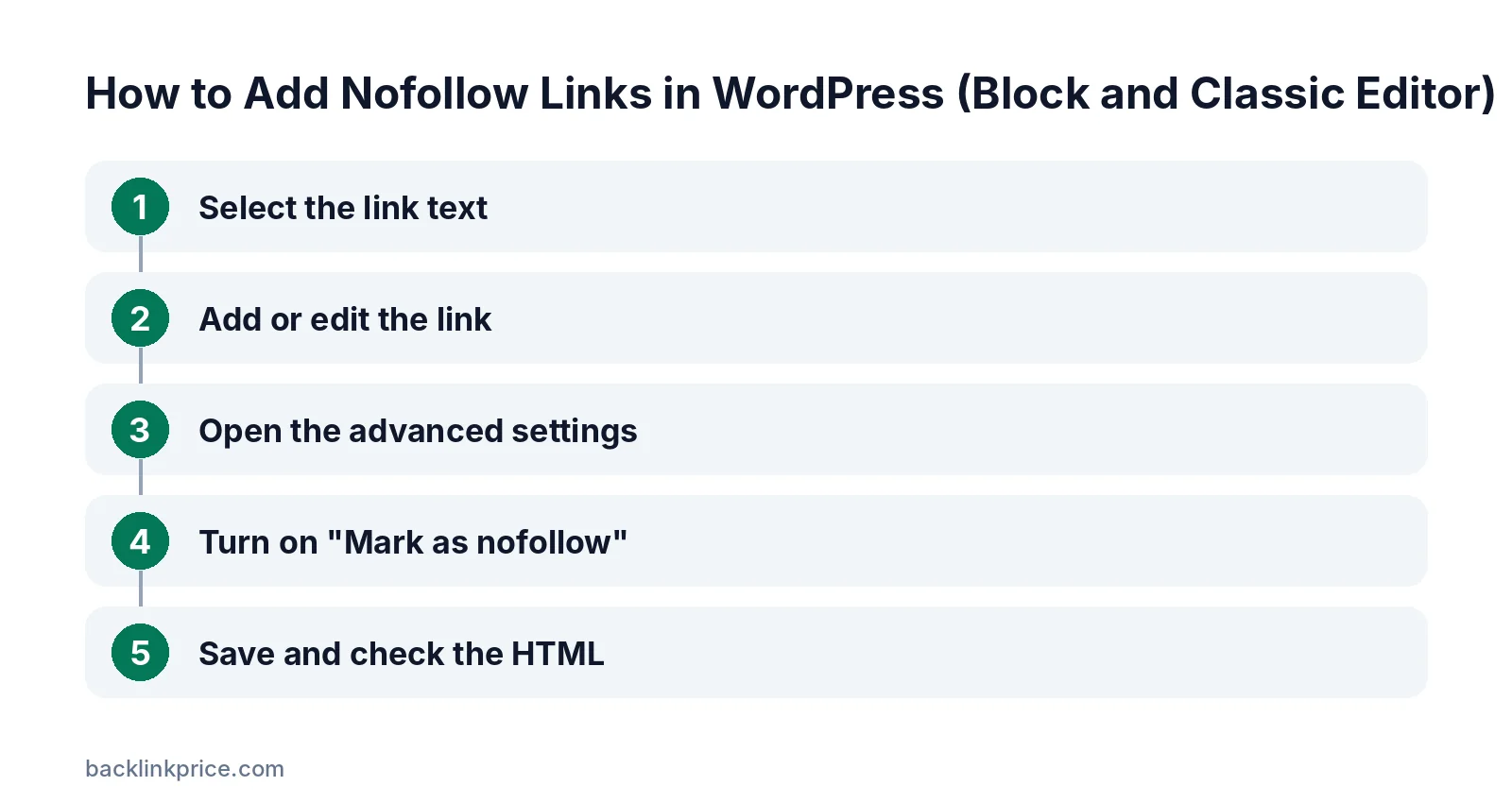
Step 1: Select the link text
Highlight the words you want to link, or click an existing link.
Step 2: Add or edit the link
Press the link button or Ctrl+K (Cmd+K on Mac), then paste the URL.
Step 3: Open the advanced settings
Click the arrow or "Advanced" option in the link popover to see extra settings.
Step 4: Turn on "Mark as nofollow"
Toggle the nofollow option on. WPBeginner's guide notes that the block editor handles plain nofollow links but cannot add the sponsored or ugc attributes.
Step 5: Save and check the HTML
Update the post, then check the link. Right-click it on the live page, choose "Inspect", and confirm rel="nofollow" appears in the a tag.
If you use a caching plugin, clear the cache first, or you may see the old version of the page.
Adding sponsored and nofollow with Yoast SEO
Yoast adds per-link toggles to the block editor.
Yoast's help page on link settings explains that you can mark a link as nofollow or sponsored. It notes that the sponsored option adds both sponsored and nofollow, and that the feature works in the block editor but not the Classic Editor.
- Install and activate Yoast SEO.
- Select the link in the block editor.
- Turn on the nofollow option, or the sponsored option for paid links.
- Update the post and inspect the link.
Other plugins, such as Rank Math and All in One SEO, offer similar toggles, including ugc in some cases.
Changing many links at once
WordPress has no built-in way to change the rel attribute on existing links in bulk. If you have hundreds of affiliate links without sponsored, you have 3 options:
- Use an SEO or affiliate link plugin that applies attributes to links matching a pattern.
- Use a cloaked-link plugin that adds attributes to every managed link.
- Edit the database with a search-and-replace tool, after a full backup.
Test on a few posts first, then check the live HTML. For policy background, read should affiliate links be nofollow or sponsored.
Adding nofollow in the Classic Editor
Edit the HTML directly.
- Open the post and switch from the Visual tab to the Text tab.
- Find the link, for example a href="https://example.com".
- Add the attribute so it reads rel="nofollow" (or rel="sponsored nofollow").
- Switch back, update the post, and inspect the live link.
When to use each attribute on a WordPress site
Match the attribute to the reason for the link.
- Affiliate links and paid reviews: sponsored.
- Comments and forum posts: ugc. WordPress already adds nofollow to comment links by default.
- Links to sources you cite as examples of bad practice: nofollow.
- Normal editorial links to good sources: no attribute needed.
Links you place in your own content to helpful sources do not need nofollow. Read when to use nofollow links for edge cases.
Common mistakes
These mistakes cause wrong or missing attributes.
- Adding nofollow to every external link "to save link juice".
- Forgetting sponsored on affiliate links.
- Using a plugin feature in the Classic Editor where it does not work.
- Nofollowing your own internal links.
- Not checking the live HTML after publishing.
To audit links in bulk, see how to check if a backlink is dofollow.
Frequently Asked Questions
Can I add nofollow in WordPress without a plugin?
Yes. The block editor has a "Mark as nofollow" option in the link settings. It does not offer sponsored or ugc, so use an SEO plugin or edit the HTML if you need those attributes.
Should affiliate links be nofollow or sponsored?
Google asks for rel="sponsored" on paid and affiliate links, and nofollow is also acceptable. Many sites use rel="sponsored nofollow". Yoast's sponsored option adds both attributes automatically.
Does WordPress nofollow comment links automatically?
Yes, WordPress adds nofollow to links in comments by default. Google also offers rel="ugc" for user-generated content, which some plugins can add.
Will nofollow links hurt my SEO?
No. Using nofollow, sponsored, or ugc correctly is what Google asks for. Problems come from the opposite: leaving paid links without these attributes, which Google treats as link spam.
How do I check if a link is nofollow?
Right-click the link on the live page and choose "Inspect". The HTML shows the a tag; look for rel="nofollow", rel="sponsored", or rel="ugc". Browser extensions and SEO crawlers can also highlight nofollow links.
Sources
The BacklinkPrice Team researches backlink prices, publisher sites and link building tools. We check prices and plans against each provider's own pages and date them, so you know how current the numbers are.
More from BacklinkPrice TeamRelated guides